In rare circumstances, our customer service team may request that you include some diagnostics from your internet browser to assist us in investigating and resolving issues quickly and efficiently.
NOTE: This is a guide when on a desktop/laptop computer.
Google Chrome
1. From the menu, select More Tools -> Developer Tools

2. Click the "Console" tab

3. Right-click in the logs list and select "Save as"
Save the file to your computer and then send it to snug.com/help.
Safari
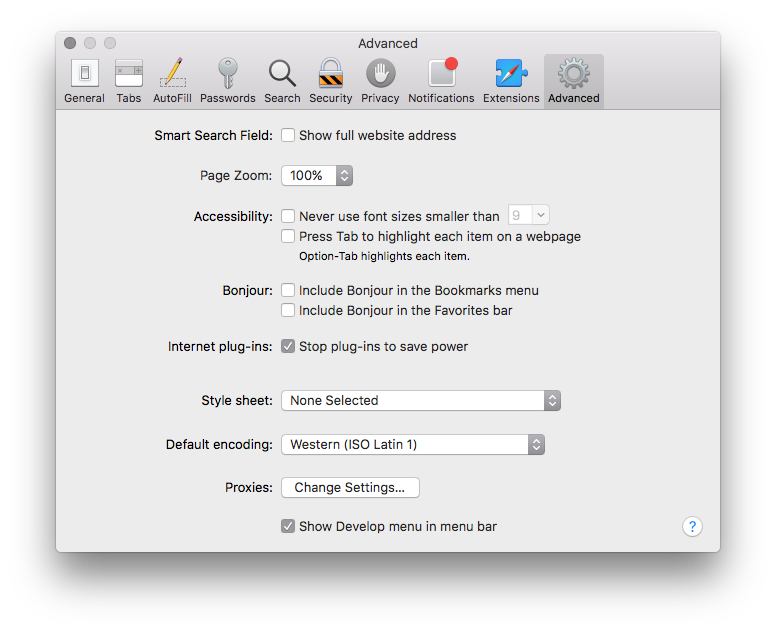
- Select Preferences -> Advanced from the menu
- Click "Show Develop" at the bottom of the options
- Close Preferences
- From the menu select "Develop" -> "Show error console"
- Screenshot the logs and send them to snug.com/help.
Internet Explorer
- Select Access Developer Tools from the menu
- Click on the middle icon on the left side to get to the Console logs.
- Screenshot the logs and send to snug.com/help.